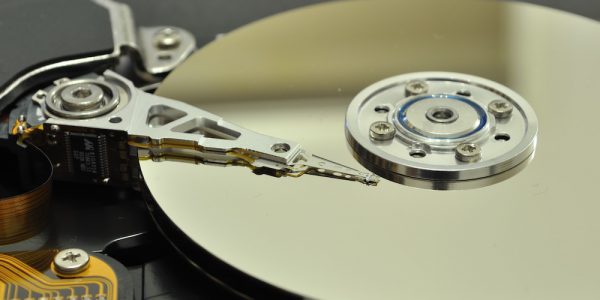
The complete guide to hard drive recovery. Successful hard drive recovery is important to everyone, because you have important and potentially irreplaceable data and files. Whether the data has been lost due to a hard disk drive crash, or the computer has stopped working for some other reason, this article shows you how to safely recover your data and potentially save a lot of money by doing it yourself. This step by step guide shows you how. We start off with free and cheap methods and work through to more difficult/technical methods. If you have difficulties or don’t want to do it yourself, information and links are provided below for hard disk recovery services by professionals. Read on to give yourself the best chance to recover your files. [Last updated February 6 2020]
I originally wrote this article back in 2006 and because it is so helpful, it is always one of my most popular posts. I keep it updated (now for 2020) with all the latest and greatest hard disk recovery information. Good luck and I hope you recover your data!
If you are a tech, then you probably know that hard drive failures are inevitable. Chances are that sooner or later it will happen to someone you support or possibly even you.
The good news is that there are lots of great recovery tools and methods out there and I would like to share them with you.
Please take this as a reminder to start a proper back up routine.
You may want to buy an external hard drive to make it easier, and they are handy to carry with you.
Step 1: Connect the Hard Drive to Another Computer
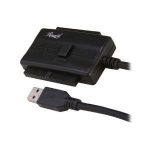
USB to IDE-SATA hard drive connector
Before you can do any work on the crashed drive you will need to remove it from the current machine (unless it is an external drive that has crashed) and connect it to another machine as a secondary drive. The best way to do this is to buy and use a USB to IDE/SATA adapter. This is the cheapest multi-functional USB 3 option and I prefer USB 3 because it is a lot faster. It is useful to have one of these:
- to recover files from hard drive
- to recover data from hard drive (ie. any files, photos, documents, data bases or other data)
- to connect hard drive via a USB (for any reason)
So it could come in handy any time you simply want to connect a hard drive for any reason. This may be to read the data or transfer to or from a working drive, not just to recover files from a problem hard drive. It is better than to always take apart the computer case or buy an external case that you then have to install the drive in.
It will just appear as a USB connected drive to the operating system. This is the easiest way and could save you time and effort!
If you don’t have one available (and you do not want to buy one) then you may be able to connect the drive to another desktop computer internally as a secondary drive, though this means pulling apart another computer to install the crashed drive. If you do, make sure that the machine detects the drive in the BIOS or you won’t be able to access it once the computer starts up.
Step 2: Try to Copy the Data to Another Drive
After you connect the drive to another computer either internally or with the USB adapter, check to see if you can browse the contents of the drive. It is worth trying because maybe it wasn’t the drive itself that actually crashed. If you can, try to copy data off that you would like to recover. This might not work if you are trying to recover data from a dead hard drive but there is a chance that only the operating system is corrupt and the user data is still fine.
Step 3: Download and Try Data Recovery Software
If you can’t manually copy the user data off then you can try to recover it using data recovery software. Whatever you do, do not write anything to the drive that you are trying to recover data from. This means you should not install the recovery software onto the drive that you are trying to recover data from. Doing so could actually overwrite files that are still hidden there and that you can still restore.
PC Hard Drive Recovery:
Option 1: Recuva
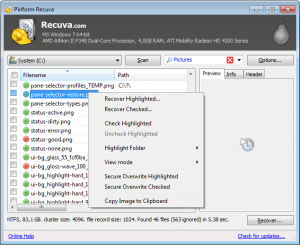
Recuva software for hard disk recovery
Click here to get Recuva which is a free hard drive recovery tool from Piriform (the makers of CCleaner) and is one of the best free PC data recovery tools available. Even if the drive has been formatted, Recuva can scan the drive to recover files. If the basic scan fails, there is also a deep scan to discover more deeply-buried results. There is also a portable version if you don’t want to install the full version.
When you launch Recuva, you will be presented with a wizard that will guide you through restoring your files. First you will choose the type of file you need to recover, then the location, and then start the scan or choose “Enable Deep Scan” if the quick scan doesn’t find the files you need to recover.
Option 2: PC Inspector File Recovery
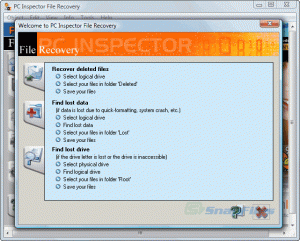
PC Inspector for Hard Disk Recovery
Click here to get PC Inspector File Recovery which is the recovery software that I originally featured in this article back in 2006. It’s still a decent recovery tool and can be used if you are unable to recover the files you need with Recuva.
When you launch PC Inspector File Recovery, you will need to choose your language. After this, you will be presented with a welcome screen giving you three options.
The first option is “Recover Deleted Files”. This allows you to restore files that have been permanently deleted from the drive. This will only work if the deleted file has not already been overwritten.
The second option is “Find Lost Data”. This allows you to recover data that has been lost due to a system crash. If you choose this option, you will be asked for the “start cluster” and “end cluster”. Leave the default settings to scan the whole drive. The scan could take a couple of hours depending on how large your drive is.
The third option is “Find Lost Drive”. Use this option if your drive letter is not showing up in Windows Explorer or My Computer. It will attempt to connect to the drive and if successful, allow you to browse the data.
Option 3: Hiren’s BootCD
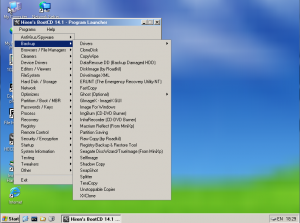 Click here to get Hiren’s BootCD which allows you to boot into a slimmed down version of Windows called MiniXP from the bootable CD or bootable flash drive and run diagnostic utilities on a problematic computer. Recuva is one of the utilities that comes bundled with Hiren’s so you can run it right from the CD. This is helpful if you don’t have a USB to IDE/SATA adapter or just don’t want to pull the drive from the machine.
You will need to connect another drive to the machine such as a USB flash drive or an external hard drive so you will have a place to copy your recovered data to.
Option 4: GetDataBack WIth zero cost option
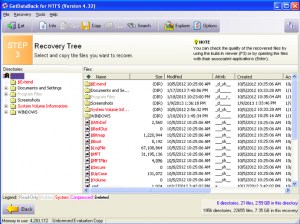
Get Data Back for hard drive data recovery
If the free utilities are not doing the trick then Click here to get GetDataBack and give it a try. GetDataBack is sold in two different versions, one for NTFS and the other for FAT files systems.
If you want to make sure it’s going to work first before you pay $79 for the NTFS version or $69 for the FAT version, they do have a demo (free) version that will allow you to see what files it can recover.
This gives you a zero cost option to check if your hard drive data recovery will be possible. If you like what you see, you can purchase the full version right then and there without even having to close out of the program. I personally have had lots of success with GetDataBack when other recovery methods have failed.
After launching GetDataBack you will be asked to pick from a selection of data loss scenarios that the drive experienced. If you aren’t sure, just select “I don’t know.” After this you will select the drive, the partition on that drive, and then start the scan.
Mac Hard Drive Recovery Software:
MiniTool Mac Data Recovery
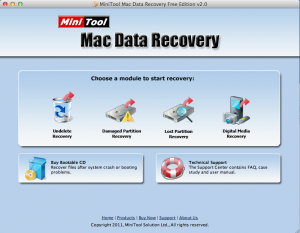
Mac Data Recovery for hard drive data recovery
Click here to get MiniTool Mac Data Recovery which is a data recovery tool specifically designed for Mac OS X. It’s one of the few free Mac data recovery programs which is why I have featured it here, however, it still has a 1GB recovery limit. After that you must pay for the full version.
When you launch MiniTool you will be presented with 4 options based on the type of recovery you would like to perform.
Undelete Recovery, Damaged Partition Recovery, Lost Partition Recovery, and Digital Media Recovery. Once you choose your recovery type, you will then be asked to select the drive that you want to recover from.
Disk Drill
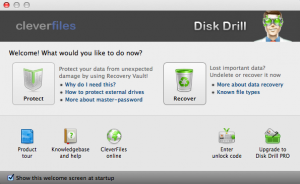
Disk Drill for hard disk data recovery
Click here to get Disk Drill which is one of the newest recovery apps for the Mac OS X platform and has quickly been deemed one of the best. You can download the Basic Edition for free which will allow you to see a list of the files that you can recover. If the files you want to recover are detected, you can then purchase the Pro Edition and move forward with the recovery.
When you launch Disk Drill, you will be presented with the option to either Protect or Recover. You will want to choose Recovery to begin your recovery process. You will then choose your drive and then select either Quick Scan (for deleted files) or Deep Scan (for lost data). Once it is finished you can select the files you wish to recover.
There are more options and utilities listed in my article Top 10 Mac Repair Tools.
Restore Deleted Files After Emptying the Recycle Bin
If, rather than entire hard drive recovery, you just need a simple method for restoring files that have been deleted from the recycle bin, check out this article: how to Restore Deleted Files After Emptying the Recycle Bin. This will only work if the file has not already been overwritten.
Step 4: (If required) Use a Data Recovery Service
 And finally, if none of these methods work or if you were unable to follow the steps, then you will probably need to send the drive off to a data recovery service. A word of warning these companies are typically high tech and therefore have a corresponding price. These are real professional Data Recovery services.
See the range of data recovery services costs here (opens in a new tab)
Click to open Gillware.com. Gillware is one of the top recommended data recovery services in the industry. Some of the benefits they offer are immediate online price estimates, no up front payments, and the ability to see a list of all the recovered files through their website to ensure the files you need are listed before paying a dime.
Step 5: (Optional) Put Your Hard Drive in the Freezer to Recovery Data
If all other methods fail, there is one other non-traditional method that may allow you to recover files on your own. To learn more, check out my previously posted article titled Put Your Hard Drive In The Freezer To Recover Data. This does not apply to solid state drives. This may be a pre-emptive action with a clicking hard drive that has not yet crashed (that is a serious warning sign). The idea is that an overheated and slightly warped disk and other components may shrink enough to briefly function. Use extreme caution, and if the data is at all important, your best bet may be to spend the money and go with a professional data recovery service. I and several people I know have had success doing this, so yes it is strange but it can sometimes work!
Summary of How to Recover Data from a Crashed Hard Disk Drive
Hard drive data recovery is possible, but take care not to use the disk and overwrite any data that might be possible to recover. First try free and low cost techniques like connecting to another computer because the drive itself might not have been the component that crashed. Then try one of the suggested data recovery software programs above. Finally try the more expensive professional recovery services or extreme options. If you have tried the above steps and have a hard drive recovery success story or would like to recommend other HDD recovery methods, please feel free to share.

140 Comments
Michael
October 3, 2006After trying everything else but before sending your hard drive to the professionals you can try swapping the circuit board on the hard drive with one from a working IDENTICAL hard drive (apart from brand, family and size make sure firmware matches as well). This has worked twice for me so far.
Grandma
May 23, 2012The post above said “1. Remove problematic drive 2. install it as a secondary drive in another PC 3. Boot into Windows and 4. download PC Inspector File Recovery.”
I might suggest that is like asking Ben Bernanke to fix the Federal Reserve – the same guy who helped rob it blind. Relying on “MICROSOFT/WINDOWS ANYTHING” (free or not) to repair anything is asking for even more trouble.
Try this – zero Microsoft/Windows required – no tearing out hard drives required – you just need a USB Flash and a working PC somewhere that has internet (which you also need with the plan above).
Step 1: Any size USB Flash Drive is OK – down to about 1 GB – which is tiny today.
You can also use an external USB hard drive – but won’t need that to get started.
Step 2: go to another PC with internet
Step 3: download a small bootable version of Linux that boots off a USB Flash Drive.
You might not stick with it later – they often lack features that Windows has but as a TOOL to do this job – get your data back – its the best thing since its free and boots right off a USB Flash Drive on 90% of all PCs out there today.
DO NOT download some mega-large Linux hard drive recovery tool.
Honestly, most of them are junk – even at free – and take a long time to download.
Good Choices are:
a) Pocket Rocket Linux – easily reads NTFS data automatically – small and fast to download
b) Tiny Core Linux – probably the smallest of them all but requires a bit of configuration to read NTFS drives
c) Puppy Linux – a bit fatter than A or B, but can be configured to read NTFS
d) Knoppix – usually installs from CD – not USB – so its the biggest/fattest to download and that can take hours.
Suggest A or B
Step 4: configure your BIOS on the dead PC to boot from a removable device first – i.e. your new USB flash drive
Step 5: insert finished USB drive (5 minutes using A or B, 60 minutes using C, 3 – 6 hours using D) and reboot
Step 6: connect a large external USB hard drive (not Flash Drive) and most of the Linux packages above will see it
Step 7: right click – select all – copy – drag and drop/paste the key folders and files you want. Usually My Documents is a good place to start.
Step 8: figure out what is missing on your Windows system. You can even get online – get other tutorials – and then go to your original Windows boot CD to find the exact file you need – just recopy that and you’re often fixed and don’t need a complete install.
This is important, since keycodes expire after a certain number of installs.
DO NOT (be careful) download specific Windows or PC specific files – except at authorized sites like Microsoft etc since they are often infected. Try to use your original, manufactured/authentic Windows CD.
DO NOT rely on original Recovery CDs – they often wipe out your data. Sorry.
DO back up frequently – but if you don’t – as long as the drive still spins up – you can use this method to at least get your data back and that is the one thing that you cannot replace. You can always re-install your operating system, but you cannot always get your photos, audio files, spreadsheets, docs and videos back if you make a mistake here.
Use this method and you’ll get it all back – fast and free – saving $1,000 or more from recovery services.
Free is a good thing.
Hope this helps.
From a software engineer – 30 years – and the owner of the largest computer sales and service store for 15 years – south Orange County, CA (I will not plug my store – no name provided)
sufi
January 19, 2013if u have any vacancy for desktop engineer please replay me i am from india.
an i have 4 years experience in California.
Thanks Reply Must.
shashank persai
August 1, 2013sir iam shashank persai my one problem my data is lost after format my laptop so how to recover my data? so please help me and please give me your mobile number
thanks and regard
shashank persai
Engineer
+91-9650071258
Prabhash
March 2, 2013Hi Grandma,
I got this problem when I was updating one of the driver on my lappy. I got one message “Fatal error” and since then many windows program and personal files/folder disappeared. I thought this is a temporary problem so I restarted the lappy assuming it will fix automatically. After restarting it is going in startup check repair mode and finally ending with saying registry is corrupt. I copied the registry key of the date before this problem occurred using manual command prompt even then my laptop is going in start up check repair. I tried safe mode and other option using F12 but still the result is same – start up check repair. I tried to boot the laptop using reboot-able flash drive through Ubuntu and it booted successfully but I could see only few GB of my personal data other files/folders I am not able to see. My laptop hard disk is 320 GB which contains almost 200 GB of personal data likes files/photos/movies etc. But as I said I could see only few GBs data out of that 200GB personal data. Could you please guide me how to recover all the personal data from the failed hard drive. It would be great help from you as these personal data is really important for me. Please do help.
Donald Kepler
July 25, 2014Hi shashank, though this is an old post but still I am willing to reply your query because the same problem occurred with me and here I want to share my experience with you about Regain Mac Data software. For resources, please visit http://www.regainmacdata.com/
free downloaded version can show the deleted files during scanning process, which assures to see your lost data, still existing on drive.
Jenifer Whitmire
March 3, 2014This worked beautifully for me. I had spent $50 on software that claimed to recover data from a crashed hard drive but it would only recover previously deleted files. I bought a USB to SATA adapter from Tiger Direct, took my hard drive out of my laptop and hooked it to another computer as an external drive and CG Security test disk worked, I couldn’t believe it! And best of all it was free! They ask for donations on the download page to keep it free and you can bet I’ll donate. Thanks to CNET, DVDMaker for the recommendation and to CG Security.Hope that helps.
sagar kodag
October 25, 2016hii grandma,
actually my hard disk is not detected, one of the proffessional he said that head is damaged, what can i do now ??
plz help me . m from india
mob. no. +918655342866
Paul
June 5, 2013You can do software recovery yourself, but there is a lot of technical stuff that can be done that is beyond the average user (or even tech). Even the clean room recovery places say most drives do not end up going to the clean room! So I’d try a middle-of-the road place to do what they can before I drop the $1,200!
I go into it here: [broken link removed – Ed].
I do like the circuit board swap you mentioned. I may have to look into that… Thanks!
Kemlin joseph
February 18, 2014If you want to recover data from Crashed mac Hard Drive then use a third party data recovery software. It’s name is Kernel Recovery For Macintosh application. I have used this tool. http://www.macrecoverytool.net/
Regina Melhoff
August 11, 2014I use this utility quite a bit. It is available and has good tutorials.
http://bit.ly/1oLCfVY
Looks like someone posted to a very old thread and resurrected it.
anna
September 3, 2015When talking about Mac hard disk formatting, users will not feel strange with it. This process can help users to clean the hard disk or fix some errors, but it can also bring users data loss problem due to the wrong operation on it. Actually after formatting Mac hard disk drive, users still have chance to get the lost files back. Follow this tutorial to recover the lost data after Mac hard disk drive has been formatted.
http://www.uflysoft.com/data-recovery-mac/formatted-hard-drive-file-recovery.html
vinnie
April 30, 2007I have a hard drive that crashed, and it have two (2) partition. I can read the second partition, but not the first one. What can i do in this case?
sufi
January 19, 2013you can repair via hirens boot cd.
vinnie
April 30, 2007What software can i use to recover data from bad clusters in a hard drive?
sufi
January 19, 2013restoration is free software.
Casey
April 30, 2007Hey Vinnie,
If the software in the article above does not work then I would highly recommend trying this method. http://www.caseytech.com/put-your-hard-drive-in-the-freezer-to-recover-data/ This method has proven to be successful for many people with unreadable hard drives. If that doesn’t work then you might have to consider sending it off to a data recovery service.
NoFreeze
May 31, 2013The “freezer” trick on modern drives will most often do more harm than good. There is “clean air” inside hard drives. The air is clean (no dust) but it does contain moisture like the air we breath. When these things get cold that moisture in the air will condense on the platters. Modern hard drives have a magnetic float height that is typically significantly less than 50 nanometers. A tiny, barely visible droplet of water is like a mountain that the magnetic read head will crash into.
When drives are “clicking” it is most commonly because there is an electrical short in the preamplifier or a magnetic read head. No matter how hot or cold you get it, it’s still going to be shorted.
I am in the storage industry for 10+ years and have worked on the guts of thousands of drives.
zeusmorg
June 2, 2007an easier way without pulling the harddrive, is to run a live linux, my favorite is knoppix, you can run from the cd, (of course first setting your boot options in BOIS to cdrom) then you can pull the data to a second installed burner or if the computer is networked use samba to transfer the information off of the bad drive. once i have the info that is salvageable off, it’s time to test and see if the drive is worthy of saving or time to replace.
techguns
June 10, 2007I only plug IDE cables to a PC with damaged mother or processor or something like that or recovery of deleted. 2 foot long cables helps.
Rlinux freeware works for recovery of deleted recycle bin but I can take a few hours.
http://www.findapp.com/fmgmt/Pdetails.aspx?PID=4590
List of live CDs. Sometimes UBCD wont boot and Knoppix, Slax will or Ubuntu. I cant depend one just one so I have about 7 iso burned.
http://www.frozentech.com/content/livecd.php
With Linux live I recover the files to a thumb drive.
Regwizz on UBCD is handy for restore points.
If I know its really going Ill try the freezer trick and getting PC inspector. Thanks.
techguns
June 10, 2007Oh someone post a link on making a UBCD for someone that has a ealy XP disk without SP1. It was a real pain and I want to upgrade UDCD new version.
Grandma
May 23, 2012you wrote “UBCD” and I am not sure if you meant USB CD (as in plastic disc) or USB Flash Drive (as in little thumb drive with USB Plug)
The post I made above (black text on gray) describes 4 sites you can use to make a USB Flash Drive that boots up and can read the hard drive. You still will need a 2nd PC that has internet – but its all free and pretty darn fast and the install for choice A and B is easy.
TONY
June 17, 2007I WAS HOPING THAT YOU MAY BE ABLE TO TELL ME IF THERE IS A WEB SIGHT I CAN GO TO . THAT WILL LET ME DOWN LOAD SOAFT WARE TO RECOVER INFOMATION FROM A HARD DRIVE THAT HAS CRASHED ? AS WELL AS ANY OTHER SOAFT WARE THAT MAY BE USE FULL FOR A PERSON THAT IS TEACHING HIS SELF HOW TO FIX COMPUTERS ! THANK YOU TONY
Lloyd
August 6, 2007I also recommend using SpinRite instead of PC Inspector. I’ve used both and while SpinRite takes longer, it’s MUCH more thorough and has restored dead hard drives that PC Inspector couldn’t even read. Also, SpinRite can correct clusters identified as “bad” when they truly aren’t, resulting in a drive that operates as fast as when it was new; this is critically important for newer, larger drives which have much more frequently labeled “bad” clusters (even though the drives automatically compensate for them in firmware). Trust me, having BOTH applications is very worthwhile.
PS SpinRite has an interesting copyright…it’s free to distribute copies to colleagues based on the assumption that those receiving the copies will find it useful and will purchase a license which, of course, is pretty inexpensive.
PPS Steve Gibson (of Steve Gibson Research, grc.com) is the brilliant mind behind SpinRite. I rank him right up there with Mark R. of Sysinternals. 🙂
w4nder
November 6, 2007This may sound strange…but it worked for me just now and I was able to recover all my data before the drive crashed again.
I had tried putting it in the freezer, but it was 120 GB drive…so it would heat up and crash before I was able to complete the copying process.
I put the drive in the freezer then after hooking the drive back up I took a small freezer bag and filled it with ice. I placed the small freezer bag in a large freezer bag and then placed the problematic drive in the large freezer bag against the bagged ice while I copied over all my data.
oj
October 25, 2008trojan horse in your free program
Mike
September 12, 2009Some people have mentioned using Knoppix to recover data from a crashed hard drive. I just got done recovering the data from my bosses hard drive ysing an Ubuntu LiveCD.
Directions on how to do that are
here
rocko
March 15, 2012i tried to do it but when i go to my computer in ubuntu the computer didnt find any drives.If u know any solution plz tell me
Grandma
May 23, 2012try Pocket Rocket Linux or Tiny Core Linux – both install to USB when some of the other larger Linux packages cannot and both can be configured to read NTFS Windows Data – Pocket Rocket Linux is a bit easier to use and installs pretty fast.
Dave Chika
April 14, 2010please i need help on my crashed hard drive installed with xpsp2,it was updating and was shutting down when i mistakenly pushed the power button,since then my laptop refused to boot,it keeps on recycling on your best known configuration that worked screen etc.so i bought an external sata drive case and fix the HDD on it and plugged it on another laptop but i was making a clicking noise and was not recognizing or reading.please am so confused cos i have a whole lots of stuffs on my laptop.
brend
April 30, 2010hey i have problem on my hardrive, he cannot detect on bios, i can try another pc, cannot detect, how to recover my file
Brenda
June 10, 2010Guys i think you should also learn to have backups just for security purposes.I normally backup online with safecopy backup and here everything including the costs are fine and more to that now they give a free unlimited 5GB trial version.I love my laptop but this does not stop me form backing up online just to avoid my data from getting lost incase my hard drive crashes.
spokane computer repair
September 7, 2010Great, this fixed our problem on the job! I can’t wait to browse more =D
Gloria
July 28, 2011Would this work if the hard drive crashed is “unreadable”? I took it to some one to repair it, they-re installing a new drive but they say the contents of the old one are unsccessible as the drive won’t read
Rob
September 17, 2011“make sure that is detecting the drive in bios? If its a bad drive it wont be detected in BIOS. WTF? if bios detects the drive then you are good……this post is worthless…fuking douche
Casey
September 19, 2011Rob,
Not all hard drive failures result in a completely dead drive. Most of the time they will still show up in the bios but will require data recovery methods similar to the ones above because you cannot boot from them. Trust me, as someone who has worked in the IT industry for over 15 years, I have been able to recover data from drive failures countless times following steps similar to the ones in this post.
-Casey
Grandma
May 23, 2012Hi Rob – I know crashed drives – viruses – and slow systems get us all pretty wound up – we all blow – but the author is just trying to provide A TOOL to help folks “not blow” – rather “stay cool” and “work together” – because losing data can make you cry – heavily.
So…wtfyp (we truly feel your pain) – try one of the methods here – the post is pretty good – lots of options and ideas – and I will guess that if you use one of the Linux methods (see my first post) you can get to your data. I have even seen one of the tools above (PRL) get to a drive when BIOS didn’t see it but the Linux ntfs-3g somehow found it and was able to mount it and get to the data…so ya never know until you try and yes – a lot of times it doesn’t work – but persistence – especially when going after important photos and spreadsheets – is the key – along with patience.
Nick
December 15, 2011Ok heres one for everyone. I can read the drive with another computer can even see partition and see the other drive. One I cant read is F: the G: is accesible and can be read. Whenever I load via 2.5 hd reader I get a message saying it wants to format the drive which I dont want to do. Now using pc inspector aint worked. Now from what i can see is I format the drive and then use pc inspector to recover the lost folder (pictures) thats all my friend really wants saved. But is there not a program I can use to access this drive. With pc inspector Ive managed to find all the old deleted files but this is not what I need I need to access the current folder and get its files. Any ideas????
Grandma
May 23, 2012use one of the tools I listed in the first post – black text on gray background – and you can read, select, copy, paste all those files to either the USB Flash Drive or better is an external USB Hard Drive – much more space. Either way it starts with a USB Flash Drive.
Celine
December 23, 2011My laptop died on me this week, and after running the PSA and everything, the Dell support told me that it’s a HDD failure. Since they are going to replace a new one for me, and I’m given 15 days to try to backup that faulty HDD, I’ll give everything a try.
Oh jeez, this will suck big time if I can’t retrieve my dog’s puppy photos…
Alias Forensics
May 29, 2012The tool listed in this article is a very good tool and we have used it before in a recovery. However, if anyone is still unable recover the data feel free to look us up.
Alias Forensics
Don Anderson
June 1, 2012This only applies to drives without physical damage. If the drive is clicking, beeping, buzzing, or has been dropped don’t attempt self recovery if the data is important.
Remember, once the damage has been done it can be permanent. Please be sure to take your drive to a professional the first time if the data is important. If you can’t afford a professional recovery right now then safely store the drive until you can.
Don Anderson
Tri-State Data Recovery & Forensics, LLC
http://www.southjerseydata.com
http://www.realdatarecovery.com
Joshua
November 21, 2012Great fascinating post! The tools mentioned here are all powerful and free something invaluable for the person who can’t afford and the small business man. Casey or Grandma I have a question for you guys I’m an IT professional myself and have 5 yrs experience working in the field(can’t compete with these guys for experience lol 🙂 one question though is will I be able to recover those files if there is a new windows partion on the drive? Want some info before I give it a shot!
OH by the way I have to correct grandma on puppy you rank it low because you may not have used it much but puppy linux can easily fall in with pocket and tiny core!
Regards!
Joshua
Casey
November 26, 2012Hi Joshua,
Glad you like the post. PC Inspector File Recovery may be able to recover files after a reformat as long as Windows itself (or any other apps that you have installed since reformatting) haven’t overwritten the sectors containing the files you are trying to recover. Take a look at Recuva too. https://www.piriform.com/recuva It’s another free data recovery app that was released after I originally wrote this article. Hope this helps!
-Casey
Calvin
December 2, 2012Is there a way to recover data if the drive doesn’t show up in disk management and when PC inspector tries to find logical drives, it keeps on getting fails?
Casey
December 5, 2012Hi Calvin,
If the drive isn’t showing up in disk manager and PC inspector can’t see it then it’s possible that the failed drive might be beyond these recovery methods. If this is the case then you may have to send it off to a data recovery service like Ontrack.
Keith
January 27, 2013First my Windows Vista computer would not boot. Took it to repair shop to check it out. They said it needed a new drive and they could not recover data from old one because it was dead??? Paid to have new hard drive installed and took old drive back with me because I did not believe what they said. They said it was making a clicking sound and was unrepairable. It was not making a clicking sound so I new they were not telling the whole truth. I started buy buying a usb to sata drive so I could hook the drive up externally. Hooked it up and the drive would spin up a but I could not see it, I then decided to purchase the pcb for the drive and went to manufacturers website to make sure that I matched the new board to the old board as best as I could. Found one on E-bay and purchased for 40.00 dollars. After replacing the board drive spin up great and now I was able to see a external drive in “my computer”. Double clicked on it, but got error “the file or directory is corrupted and unreadable” searched internet and found how to run “chkdsk” in the command prompt. I ran it on the affected drive by typing in chkdsk I: /r something like that you can find this on any repair website. I can now double click on the drive and there is 84 gb of my data. I am very happy. My question now is how to get that back on my computer the fastest and best way and not screw up all that I done. And also find any other data that the chkdsk did not fix possibly. After all this work I want it all back. But I need to do it the right way. Any Ideas?
Casey
January 30, 2013Connecting the drive to a computer as a secondary drive and then manually copying the data over is probably the best way and shouldn’t screw anything up. Chkdsk may have fixed everything but you won’t know until you start copying stuff. If your copies fail then you will want to use a program like Recuva to help restore your data. Keep us posted.
naim
February 20, 2014hi Keith, thanks for your idea, sounds excellent and simple. I have wasted many restless days on trying my unbootable hard drive to rebbot with no luck. I have though managed (hopefully to retrieve data) via a sta USB adaptor to trnsfer into another working notebook. I came across your simple way of checking and repairing the corrupted hard disk on my good notebook.Its still repairing it now but I am optimistic, presumably after its been repaired i can take the unbootable hard disk, put it back in its notebook and hopefully it will boot!
Tooz
January 27, 2013Thanks for the article, Casey.
My HD is bad, had a new one put in, need the files off the old one.
Bought the SATA cable adapter, hooked it up, four drives showed up in Windows Explorer (E,F, G, H).
Downloaded Recuva, but it stops when I select the drive to scan.
Note – my computer won’t boot if I have the old drive plugged in when I start or restart it. I have to start Recuva, then plug in the USB/SATA cable.
Got any suggestions?
Thanks,
Tooz
Keith
January 27, 2013Go to start than run and type in cmd then enter. The dos command window should pop up. Type chkdsk x: /r where x is your external drive and it should start to repair it. Let it go. I am by no means an expert but this worked for me.
Casey
January 30, 2013Hi Keith,
Thanks for sharing. This may work depending on what type of issue he is having. I left this out of the article though because I was trying to focus strictly on data recovery and not repair. In some cases, running a utility like chkdsk can make things worse. If the data is very important, and he doesn’t want to run the risk of making it worse, then I would recommend staying away from chkdsk and focus only on recovery. I did a quick search and found this article which explains it a little more if you are interested. http://ezinearticles.com/?CHKDSK—Life-Saver-Or-Disk-Drive-Killer?&id=1326003
Casey
January 30, 2013Tooz,
Did you try any of the other recovery programs I listed? I would recommend trying the demo version of GetDataBack and seeing if that works. If it does then you will have to purchase it to perform the recovery. If the hard drive had Windows XP, 2003, Vista, Windows 7, or Windows 8 installed then you probably need the GetDataBack for NTFS version. Hope this helps. Keep us posted.
Tooz
January 31, 2013I downloaded and tried Recuva, but it didn’t find any files.
Before I read your response, I tried the chkdsk as Keith suggested. It showed there were files, but I still could not access them.
I guess I’ll try again with GetDataBack – it that doesn’t work, I’ll have to get ready to spend a lot of money, I guess…
Thanks for your time and efforts on my behalf!
Tooz
Felicitas
January 31, 2013Hello there, I found your blog by the use of Google whilst
looking for a related subject, your site got here up, it appears to be like great.
I have bookmarked it in my google bookmarks.
Hi there, simply was alert to your blog thru Google, and found that it is truly informative.
I’m gonna be careful for brussels. I’ll be grateful in case you
proceed this in future. Lots of people will likely be benefited out of your writing.
Cheers!
Tooz
February 5, 2013GetDataBack didn’t work either… took it to a friend’s “computer guy” and he couldn’t read anything from it… said something about a corrupted Master Boot Record (MBR)…
I’m screwed…
(any ideas, other than spending $300 – $1,000?)
Casey
February 6, 2013Hi Tooz,
If GetDataBack couldn’t recover the files then I’m not sure if there is much else you can do. If it is an issue with the Master Boot Record then GetDataBack should have been able to still see the files so I think the problem is more serious then that. Reach out to Gillware and get an estimate. It may be cheaper than you think.
Saurabh Mehta
July 21, 2013Dear Friends,
I need Help, I have wdc5000aads-0sb90 500 gb hdd of western digital,hardly used 150 days ,
suddenly gone bad, bios recognise ata device only no serial number,some times it shows,
when it recognized it started chkdsk and files unreadable etc, please let me know how to recover my data from this point onwards,my email is samgreat555@gmail.com
in adition i have four partition on hdd , 250 gb Vista, 79 gb ,79 gb,89 gb, other 3 are important for me not vista wich contains OS, i have snapshot done in recuva, please let me know proper way to detact it in Dos and any tool need for disk image or simple copy, also how to get hiren’s boot cd and how to use it Thanks, waiting for help………
Regards, Thanks
Dave
February 17, 2013this info is all for a crashing hard drive, not a CRASHED hard drive. My drive is completely crashed, meaning when I boot the PC, it isn’t recognized and the PC will not pass Post. It just sits there as long as the drive is connected. I need a method that works for this.
rana
February 26, 2013Hi
The tools listed here are very good tools for data recovery from a crashed hard drive and all are probably time tested for data recovery. I particularly like GetDataBack for the purpose. However, if anyone is still unable to recover his lost data from the failed drive he may look into the following useful article which I found very helpful while searching the web.
http://radharenu.hubpages.com/_1fvrvpoyw4f0q/hub/How-to-Recover-Data-from-a-Dead-Hard-Drive-a-complete-guide
cararoxoxo
May 13, 2013Hi, I have a PC with which I was using a Seagate external drive to store all my photos and videos. My son has a Mac and he connected my external drive to view photos and now neither of our computers recognizes the drive. He said he never reformatted when he connected it. I’m just wondering if there is hope for getting my pictures back? Thanks!
lql
May 18, 2013i have exactly the same problem as cararoxoxo, just in reverse.
my seagate external drive was working fine on my mac (maybe just taking a while to be mounted sometimes) up until i plugged it into my cousin’s PC. we all saw the pop-up window asking if we would like to “Format” or “Cancel”. we naturally chose cancel.
now my mac can’t mount my external drive, although it can be seen in disk utility.
fingers crossed for any help possible! (meanwhile, wondering if the freezer method will work?)
Kingsley
May 28, 2013I installed a software “Blackberry OS” on my PC and I was instructed to restart my PC which I did, Unfortunately the PC failed to boot, I got this message showing “BOOTMGR Image is corrupt, system cannot boot” sometimes I do get “BOOTMGR is Missing” I had to repair it with Windows Installation CD” which was the only way, now the light indicating the HDD is not even showing again, and the PC is not even booting at all
sunil
June 16, 2013As i connect my adata hv610 external drive to any laptop or pc’s it displays the message “one of the USB device attached to this computer has malfunctioned, and Windows does not recognise it” so i cant access the drive where i have stored my important files. So pls can any one help me for the mentioned problem so i can recover my files.
Hasim
June 16, 2013Dear sir
i got a problem with my hard drive i dont know why. my windows xp was cuppupted and i cant access my data afterthat i remove that hard drive and i connect that hard drive in other pc but i show that hard drive with differant drive but i cant access it when i double click on peticular dir there is give me the message of format your hard drive so please help me how to recover my data
yash mehta
June 23, 2013i have a seagate 1 tb external hard disk, its not getting detected, though it blinks the light after getting connected, but not getting detected to any device.
how can i recover the data.
plz help me
Saurabh Mehta
July 21, 2013Dear Friends,
I need Help, I have wdc5000aads-0sb90 500 gb hdd of western digital,hardly used 150 days ,
suddenly gone bad, bios recognise ata device only no serial number,some times it shows,
when it recognized it started chkdsk and files unreadable etc, please let me know how to recover my data from this point onwards,my email is samgreat555@gmail.com
Regards, Thanks
Saurabh Mehta
July 21, 2013in adition i have four partition on hdd , 250 gb Vista, 79 gb ,79 gb,89 gb, other 3 are important for me not vista wich contains OS,
i have snapshot done in recuva, please let me know proper way to detact it in Dos and any tool need for disk image or simple copy, also how to get hiren’s boot cd and how to use it
Thanks, waiting for help……….
Surjeet
August 16, 2013Sir,
MY external hard disk have no partition. It has only a drive which only data. How can i recover the data
Thanasis Vourvou
August 20, 2013My hard drive (Seagate Barracuda 250GB) stopped working and its making a beeping sound. Searching through internet I found out thta it has probably crashed.
Is there a way I can recover any data from it without going to a lab?
It was not my OS drive. It only contains files , music and videos.
Any suggestions?
Blake Carpenter
August 25, 2013After I recover data to a different drive is it ok to then move that data back to the drive it came from?
Blake Carpenter
August 25, 2013There isn’t anything wrong with the drive I recovered it from, it was just formatted
carlos
August 28, 2013so my macbook pro was giving me a white screen with just the apple logo so i got into the comand shift window and it told me my operating system was unsucsesfull which i took as everything is still on the disk. i put the disk in my pc hoping to transfer my files to my pc . all my files are on the dick but it will no let me transfer. what can i do . i am a audio engineer so all the files i have are really important .someone help please
Andrew Bibeau
August 29, 2013I had a similar situation happened with my computer. I was gone for awhile I came home and when I turn my computer on.windows would not boot up.I would get a message with Windows system root and listed a missing file name. this message will come up every time no matter what I try to do with it I tried to reboot several times tried to do a recovery with my Windows CD and that didn’t work. So Iremoved the hard drive from my garage computer and install that into my desktop computer and when I did that I ended up having to installI knew copy of Windows on to that seem hard drive however I installed the Windows files in a different folderand was there for able to retain my service pack files that I had saved on that hard disk alreadyone of the first things that I did with this computer is install service pack 2 once that was installed the computer rebooted and after the reboot the check disk notification came up once again andand luckily for me I wasn’t paying attention at the time and the check disk operation started and basically windows proceeded to repair whatever was wrong with my hardest to know it’s working again I was just able to go on to it and access all the information. By the way sorry for the missing punctuation I’m not typing this I’m speaking to my phone.soul what I intend to do know is remove the hard drive I just had it in and hopefully windows will reboot on my 80 gig Western Digital hard drive again. And I t will be party on time. Btw I am running xp pro and always will be. I will post any updates
aniket d
September 29, 2013i have got sata hard disc which is not working and it seems due to my wrong connections done it got crashed. what should i do in this case? please help me soon.
dZ
October 20, 2013hi, just read this post. please tell me, in order to retrieve the data in “broken” or crashed drive, I have to actually format the drive first to get the other data that isn’t causing the drive to crash? I’m lost here. confused to be exact.
I have a dead 16GB micro sd card (used to be the life of my android phone) that is now making windows pops “please format your drive in order to use it” message everytime I put the card in the computer, and a crashed C drive of my laptop hdd (the D part is perfectly well and readable). I tried using Piriform’s RECUVA on the C drive and it retrieves only the files that cause the C drive to crash (actually my kid turned the laptop off while it was updating the nVidia driver). I want the other files that is fine….. do I need to format the C drive to get them?
please advise. THANKS!!
msa
October 21, 2013adg trh
ms anwar
October 21, 2013dear,
i hav a laptop. there r two windows, 1 wondows10 and 2 ubuntu.
my windows 10 sowing only c drive then i craeted a d drive by my frnd.
and then i restarted my laptop, its showing error! ( ergue …..)
my frnd formetting my laprop. and my all data loss. and show only one woindows…why?
did ubuntu crashed?
could my all data recovery?
please help me…
shahid
Rohit
October 22, 2013i have a dell studio 15 and three drive partitions…i cant access one of my drives (which had most of my important data)…i have windows 7 installed on my laptop and it is now taking half an hour to boot up…i m also unable to reinstall windows 7/8 as the set up is getting hanged…the drive is showing in “my computer” but i cant access it neither its showing any details about it…how can i recover my data from that drive??
Satyam
October 29, 2013Hello,
I need help.
a Friend has a crashed 2.5 inch Seagate Hard Disk.
To attempt to recover it….can i put the crashed hard disk in an external HDD casing and attempt recovery??? any other efficient and “workable” way of connecting the crashed HDD to a PC? thanks
bichitra
October 29, 2013my hard disk not working. as ants got into it & it made scratching sounds. it has 320gb space & not shown by another computer when it was connected.
what should i do now
Dave L
January 29, 2014I’ve got a 2005 Compaq Presario with XP and two hard drives. I recently attempted to upgrade the XP before the MS April 2014 deadline. It caused major problems with the operating system. After searching the Net I tried to reload the “Service Pack2” and “Service Pack 3” as per instructions from MS. MISTAKE!!!!
Killed the operating system completely. Net search found numerous complaints and discussions of the same problem.
Attempted to load Windows 7 and now nothing. It starts, attempts to load Windows, and drops me into the safe mode. Took to repair shop, who got it to work, but … that was only until I turned it on at home.
Attempted to copy important data from secondary drive to USB but the system does not recognize any of the 7 USB ports. Took it back to the shop, and was told the hard drives were dead, the all important secondary was “clicking”, and that it is probably a mother board issue.
But I can get to a c:> and it no longer recognized the vital secondary drive.
What are my options?
When I get a new machine, is it best to install the questionable HD? What about hidden malware that may have become immeshed into the files?
Bansi Lal Pathak
May 9, 2014After going through the whole thread of comments, I am wondering why people are so much into getting data recovered on their own. If the data is worth recovering then it is not worth taking the risk of recovering on your own.. Though you can try putting in some software expertise in it. Software from http://retrievephotos.com/ has shown good results for me..
And even if you are not satisfied with the results of software, you can go for data recovery experts.
Points to be noted:
1. If data is invaluable, dont recover it.
2. If data is valuable, dont be a doctor yourself.
3. If you want to save money, go for the best data recovery software.
4. If its so valuable that you want it anyhow, go for data recovery experts like Stellar..
Thanks…
Rasmi Mishra
June 30, 2014I have an external hard disc (USB) of 80gb to store my raw data. It is a old one (FAT32) and it has three partition. I wanted to copy all the data to a new one. I tried first to copy to my computer, but after copying 1 file somehow it did not work. I restarted my computer and the external hard drive was still attach to it. Now two of the partition are not accessible, its says used space zero and disc space zero. The 3rd partition is working fine. I need the data from one of the drive and its really important. Any good software for it, please suggest.
Thanks
Rasmi
angel234
July 8, 2014Data is more important to all user so use advanced data recovery tool to instantly recover data. Check free trial tool http://www.en.windowsdatarecovery.net/
Vishal
July 8, 2014Hi, few weeks earlier my hard disk felt into water and was in a very critical situation but I got recovered my all data back from DATA CARE SYSTEMS very soon and it is working fine now. It’s little bit expensive but not more than our data.
You can contact 9235602333,9235202333 @ DATA CARE SYSTEMS.
Donald Kepler
July 15, 2014If drive is formatted then the chances of recovering the deleted data back are high. But in case, if drive is wipe out or overwritten completely then the chances are too less near to zero. There are many data recovery software which claims to recover the data with in few clicks like Stellar Phoenix Mac Data Recovery software, mini tool Mac data recovery software etc.
magic man
August 7, 2014can you access the search history?
magic man
August 7, 2014My hard drive crashed three years ago can I still save it?
Ford
August 14, 2014Hi! First, a million thanks for posting this article! This really did help me recover some of my important files and photos. My old man is so delighted to see his younger years and our old family pictures that have already been lost when this pc crashed. However, right now my problem is most of the files that I really need was overwritten for the dumbest reason of not following simple instructions of not installing the recovery software on the hard drive that I want to recover from. I really feel bad about it and it was too late (I got too excited) when I realized I have screwed up. So my question is, Is there any other way that I can undone what I just did or restore those files that got overwritten in the process of installing the recovery software? I hope so. Thanks again!
piku
August 25, 2014Hi All ,
I have been using a HP laptop for last 5 years . Recently i found a problem while starting the lappy . Its throwing a blue screen then getting restarted and then asking for repair . when i tried to repair , its doing nothing . i tried to format using a pen drive but failed . den i have taken my lappy to a computer repairing center . they told me that lappys hard disk has been crashed . they tried to take back up by connecting with an adapter but did not work . could you please let me know how can i get back all data from the crashed hard disk .
Rohit Attiamrad
April 3, 2015same problem im facing sir.
i tried connecting another laptop and pc as well but hard disk isnt detecting in any of the laptop..
George Paul
September 9, 2014I was confused about how to recover data from crashed hard drive. Moment later my technical friend suggested usage of third party application called Remo Recover, used it and the result was overwhelming.
Monica
November 14, 2014Informative.. Thanks for the post.my lappy’s hard disk crashed couple of weeks back. The hard disk contained confidential and important data related to my work.I was skeptical about using online data recovery tools because my previous attempts of recovery was just a mere waste of time and money. So, as suggested by my friend I contacted a data recovery company (http://www.indiacssi.com). I was promised by CSSI engineers that my data will be recovered back. What a big sigh of relief :-).. I was able to get all my data recovered after few days.
————
To attempt to recover it….can i put the crashed hard disk in an external HDD casing and attempt recovery??? any other efficient and “workable” way of connecting the crashed HDD to a PC? thanks
steve5
December 20, 2014“crashed” crashed means the heads hitting the platter or failing in some other way, it used to happen a lot in the early days and this is not something the DIYer can repair.
I have an Apple macbook Toshiba disk that is knocking and screeching on start up. It has crashed, it was not detected using disk tools and not surprisingly was not detectable by using my docking station or USB to sata kit. The ‘crashing’ noise is the give away.
The article is surely referring to a *corrupted* hard drive that was detected but wouldn’t boot.
ron sonju
January 9, 2015I found I had some virus programs on my HP Pavilion PC with Vista so I uninstalled them. Then I received a “cannot connect to proxy server” message. I shut down and when I powered up I got the ” HP Invent” blue screen – no beeps – for about 30 seconds and the screen went blank. I did a CTRL-ALT-DELET and got the blue screen back for 30 seconds. The ESC and F10 keys are functional. The F11 key has no effect and the keyboard is otherwise completely dead. The PC is unbootable. Some friends of mine suggest that my hard drive has probably crashed. Any suggestions as to what to do next would be greatly appreciated. Thanks.
Toinks
March 13, 2015Can I still recover our files even if the laptop was formatted? Please I need help…we have so many important files there :'( like grades and thesis..
It starts when I was about to shut down our laptop and there it appears the configuring or updating stuff then accidentally I pressed the power button, so it shut down…I think its alright so I just ignore it…then the next day when I open the laptop I found it odd because it start so slow than usual.
Then suddenly a black screen appears and saying index blah blah deleted.. I got nervous and push the power button…then open it again.
Then a blue screen appear again, then saying it has a problem and stuff. Then it recommends to use the start up file recovery I think. Then I follow it, but it just repeat over and over again. It restart then start up file recovery then finish then restart again. Its just like a cycle. Then my brother tried to fix it by inserting a disc (I don’t know what is it) but it just repeat the cycle. So I tried searching if there are answer to our problem :'(… Please help me.. My thesis is there and I don’t have any back up files :(..its just like I can’t graduate without it…and yes I am a graduating students…
So I really need an answer to it… For those who have a good heart who want to help me..I really appreciate it.. Thanks
Mitch
May 4, 2015It should be recoverable. I’ve used these guys https://acsdata.com and had good results, but that was a hard drive that I had dropped and had to have the needles or something replaced inside there.
Rohit Attiamrad
April 3, 2015Hi
I have HP laptop. Its hard disk has been circuited and its not been detecting in another laptop or pc.. please can i know what should i do for the recovery of the files..
Please take trouble in mailing me the solution.
This will be very helpful to me.
attiamrad.rohit@gmail.com
Thank you
redhank
April 7, 2015links to download linux please?? tried a couple spots and it doesn’t download.
thx
rehank
April 9, 2015got it
looks like i need this too
John
August 24, 2015I’ve found Disk Drill tool on CNET http://download.cnet.com/Disk-Drill/3000-2094_4-75984417.html
Nearly all lost data are found by using this software. It is useful in multiple data loss situations, so I think everyone should have it in case of any unexpected data missing disaster.
Haja
August 26, 2015Dear AlL,
I have one external portable hard disc(Toshiba 500 GB) hard disc, but that is not detecting now, Please help me how do recover the data from the hard drive. Kindly help me.
Regards,
Haja Rajubudeen.
Terry
October 18, 2015Thank you so much! Worked fine for me with an enclosure.
Also, I’ve found this tutorial that allowed me to recover not just files, but also settings and – most important for me! – programs. Got my Office, Adobe, and emails back just as before the crash.
Hope this helps!
John
October 28, 2015You mention Disk Drill for Mac, but forget to mention Disk Drill for Windows, it’s freeware http://download.cnet.com/Disk-Drill/3000-2094_4-76277044.html
Jack
May 16, 2016So far I tried recuva and as with most programs the data on my hd was NOT recovered. Instead it tried to fetch DELETED files. I need my normal files, the one I can see, but cannot copy.
So in spite of the nice article, RECUVA does NOT wat you claim it does.
I tried everything, settings are not more then adjusting the language.
To me it is a bit misleading and a big timewaster, as I tried for hours to get my data on my new HD.
DavidPrestonus
June 15, 2016I am sure many people will agree with me upon this matter that….. Recovering files from a malfunctioning computer is a dilemma for many and you are also one of those people that is the reason why you have shared this post here with us.
Thankfully, software companies have found a way to create data recovery software to aid in retrieving all these lost files.
Through such software, you can easily recover your most important files without difficulty.
I would like to say a big thank you to you because non-tech people do not know how to manage or search for such software…..
One such software providing company that I am aware of is http://www.dataretrieval.us/. Hope this also aids in helping people.
No Wonder, your post is a big help for them and they will also now able to recover data from their crashed hard drives, easily…
Thanks again for this share!!
Lesley
June 15, 2016lolwut
Vacheslav Litvinenko
June 21, 2016One day I had found an old hard drive. I opened it and understood that all data were deleted. I deceded to recover all of them. I found some articles which helped me: this and https://hetmanrecovery.com/recovery_news/recovering-data-from-external-storage-systems.htm . So, I connected the drive to another computer, used Piriform and all data recovered. Thank you!
Mack John
June 23, 2016Recover entire data from damaged hard drive which is formatted as a ntfs format. This tool recovers complete data in same order as it was saved. This tool can recover highly corrupted data as well.
Know More: – http://www.ntfsdatarecoverysoftware.com/
Enoch A
October 7, 2016CAN I PLEASE NEGOTIATE TO COME TO YOUR PLACE OR I HOST U GHANA TO RECOVER MY INFORMATION ON A CRASH COMPUTER HARD DRIVE FOR ME? I NOTHING ABOUT THE WHOLE THING BUT HAVE LOST DATA I CAN NOT AFFORD TO
HELP
ENOCH
urhuru
November 14, 2016Sir look send me and email and i will help you , you only pay after we recover the files we are in Kenya
Avgas
October 12, 2016Suffered a “no bootable device – insert boot disk and press any key” on boot up, hard drive was previously working. Ran mini XP console from Hiren’s CD but couldn’t see drive, likewise ran Puppy Linux and Mint Linux from CD – same problem.
Removed the HDD, plugged into a Sata-USB cable (a few bucks from Ebay) and whilst I could feel the drive spinning, the PC would not recognise it despite loading drivers and indicating it was ready for use. Bizarrely, Disk Management on Computer Management screen could ‘see’ the drive and its capacity via USB but said it needed initialising – not going to do that!
Installed and ran Find and Mount – it would only locate the required partition via a thorough test (tip – no need to wait through the whole scan, if it’s found the partition you want just click on it) but despite showing me the folders would not give me permission to access, access was denied. Aaaaargh!
There was only a Windows password on the faulty drive, I was logged in and running the program as administrator on the host PC and changing permissions didn’t help.
Ran Find and Mount on a different PC and weirdly it worked first time, files are moving across now.
Looks like the MBR has got corrupted so I’ll mess around with this once the data is safely backed up, Hirens CD has some pretty good HDD test and repair programs so I’ll play around with these too.
Thought the above might help, Find and Mount is a brilliant free tool that doesn’t need the MBR to access the disk. I also hope I won’t ever need it again…
willam fori
November 8, 2016In my case platter got damaged. I tried to recover my data inside by various software like recuva, test disk but failed to get it back. Later I sent it to Stellar Hard Disk Recovery Services. The end result was worth seeing. Recovered every bit of data from my hard drive.
Raim Meg
November 10, 2016The best you can do in this situation is remove the hard drive from the current PC and connect it to another one. It usually works almost every time. In my case, I tried this switching on another PC and it works very well.
Kim Lofts
November 29, 2016Hi,
I have a 750gb ext drive (it’s a seagate barracuda 7200.10). It is not mounting on my mac’s anymore (I run a Macbook Pro -10.6.8 and a iMac 27″ – 10.9.5). When I go into disk utilities it does not let me access any of the functions to repair permissions etc.. When I try to mount it a message comes up ” the disk you inserted was not readable by this computer”. I have another drive exactly the same which is working OK so I swapped the chassis over and it worked fine – so the chassis is OK and the drive itself is problematic. Is there any other trick to isolate the issue with the hard drive ??
Thanks.
Kim
Jeff
December 5, 2016Hi Kim, there are some options that might be helpful in the article https://www.thetechmentor.com/posts/top-10-mac-repair-tools/
Really worth a try. If some of those utilities aren’t helpful I suspect you might be looking at one of the more expensive recovery options above.
srinivas
December 21, 2016sir my harddisk crashed we have given but they are saying it is not possible to retrive.
Jeff
December 21, 2016Hmmm. That’s disappointing. Who are ‘they’ you refer to?
Pierre POMMIER
December 28, 2016Recuva Data recovery soft can be free but works great.
Clement
January 12, 2017I have a dead (MBR error/ partition deleted)HD SATA 500 GB and all efforts to retrieved my valuable data proved futile. Finally I tried testdisk/photorec from http://www.cgsecurity.org and it gave me a sort of hope. My problem is my dead hard disk is partitioned into 2 and what is recovered is only the partition on which the system files are located. Help please.
Ultra Data Recovery
January 14, 2017We can help you!
Ultra Data Recovery
January 14, 2017Please keep in mind that any DIY data recovery attempt can cause permanent data loss.
I’d strongly recommend seeking help from a specialist.
Every hard drive fails eventually and keeping a backup is the best method to avoid data loss.
Best Regards,
UltraDataRecovery
Jeff
January 24, 2017Trying to recover your data yourself is a practical thing and can cost nothing if you follow this guide. Computer Technicians do it all the time. A lot of people without any special skill successfully recover their data at zero risk. It is not risky to connect the drive to a different computer; it is not risky to try accessing with software designed to do so.
In some cases professional companies charge a lot of money for what they actually need do. Very often no dismantling in ‘clean rooms’ is required. This article helps people by showing them simple free and cheap ways to attempt hard drive recovery to see what data they can recover from their hard drive themselves, scaling up to more skilled expensive hard drive data recovery options only if it is found to be necessary. At the end of the article one very professional, knowledgeable and experienced company is provided.
Oliver Powell
January 24, 2017I agree with the words of various commenters that doing self-experiment with a crashed hard drive for recovering data is a bad practice. There are two types of failure: Logical failure and Physical Failure. If it is a logical failure, then advise you to go with a Stellar Phoenix software available at https://www.stellarinfo.com/windows-data-recovery-professional.php to recover your lost or deleted data. And, if it is a physical failure, then avail a data recovery service center.
But, never attempt to be a doctor yourself. Consult with the experts and then take a decision.
Cheers!!!
Jeff
January 24, 2017If you mean ‘be a doctor’ is to open up your hard drive like surgery, then I wouldn’t operate on myself! lol. But checking your own health and doing things to improve it can be done by anybody. Similarly anyone can try some basic options to recover hard drive data themselves. Appreciate the link to another hard drive recovery software!
Pete Bolderstone
February 2, 2017Brilliant! – I ran GetDataBack (put broken hard drive in caddy so I could USB it to another PC on which I ran GetBackData).
Ran it in Free mode – it found the drive and all the files I wanted (over 40GB) I bought the licence there and then, put it into Licensed mode and copied off all the files I needed. It was $79 well spent. Thank you GetDataBack.
Edy
March 10, 2017Do I have to take the hard drive out of the crashed computer or can I connect it with a double-ended USB cord to my laptop and treat the crashed computer like it is an external hard drive and use the good computer to search the disc on the bed computer and just copy from the crash computer to my laptop?
Jeff
March 13, 2017Edy, it is best you remove it from the computer case. You can try to install in another computer case (and change the BIOS), but if you only have access to say the laptop you mention it is best you get an adapter which has the USB connection one end and the appropriate SATA/IDE connector the other end. Use the link in the article to find one.
Lloyd
March 22, 2017My laptop Hard drive crashed, when i try to format it does not even reflect the space it just available. and i really need that data there is very much important files. please help me.
Jeff
March 22, 2017Hi Lloyd. Do not try to format your drive! You apparently can connect your drive to a computer – so you could try one of the free software options above. If the data is very important as you indicate, you can try Gillware (in the US, see link in the article above) or one of the other professional companies and pay. They will surely recover your data (your highest chance of success), and if it is important it is likely a very good option for you.
David Johnson
March 28, 2017Dear Author,
Big thanks for sharing your inputs with us. I really gain vast knowledge about data recovery methods after reading this post. Both the manual as well as software based methods are neatly explained.
Still, I have slightest of doubt, related to Step 5 mentioned by you. Can you please explain, are this method, still worth a try?
Eagerly waiting for your reply.
Jeff
March 28, 2017Hi David, thank you. Yes I believe it is worth a try before sending it away to a professional recovery service, depending on your situation. Please see the link included in step 5 – that article really goes into some depth as to why it might work depending on the nature of your drive’s problem.
Moses
April 11, 2017Hello my Laptop Hard Drive Seagate momentus 500GB crushed. It’s SATA. I do have valuable data on it. I took it out of the laptop and connected to a working Windows 7 computer. When I connect it, the Windows Computer CRASHES. It produces the exact BSOD CLASSPNP.SYS error, that occurred when I was booting from it. Is there anybody with a solution to this problem. Thanks in advance.
Dustin DeTorres
May 28, 2017Are you thinking about DIY recovery? Don’t, just don’t. If you are sure about this then its fine otherwise this could lead to permanent damage.
roy.kiaan
June 20, 2017Agree with most of the comments here, but self-experimentation can be damaging and may be damaging. It would be better if a professional data recovery service provider retrieves the data for you.
Software’s do their bit, but what in case they corrupt the data. For those who advocate the use of software can check out the blog http://www.stellardatarecovery.co.uk/logical-data-recovery-risks.htm. Instead of fanatically searching for quick solutions..users should thoroughly research.
Ms user
October 3, 2017One of the Best USB Data Recovery Software for Windows which I know are
1. Recuva Data Recovery
2. Disk Drill
3. Pandora Data Recovery Freeware
4. Photo Rec Data Recovery Software
5. Glary Undelete
Dipesh
November 13, 2017I have a dell laptop inspiron and the hard disc is crashed. There is no sound in the hard disk of revolving and I have tried every thing, but its not working. please help because I have very important data in it.
Jeff
December 4, 2017Hi Dipesh, it is best you go to a professional data recovery service such as the one mentioned above. You may need to find one in your location. They have excellent tools to recover data from such a drive that software can not fix.
RAGHAVENDRAN R
December 17, 2018My iOmega hard disc got crashed. Can you suggest a professional who can help to recover in Bangalore, India.tw
Leave A Response